How it works

From design DXF to a live lot register in six steps

No new drafting workflow to learn, ForgeLot builds on the alignment your designer already gave you.

The walkthrough

Six steps, start to finish

1
ForgeLot project lot register beside a live roadworks map

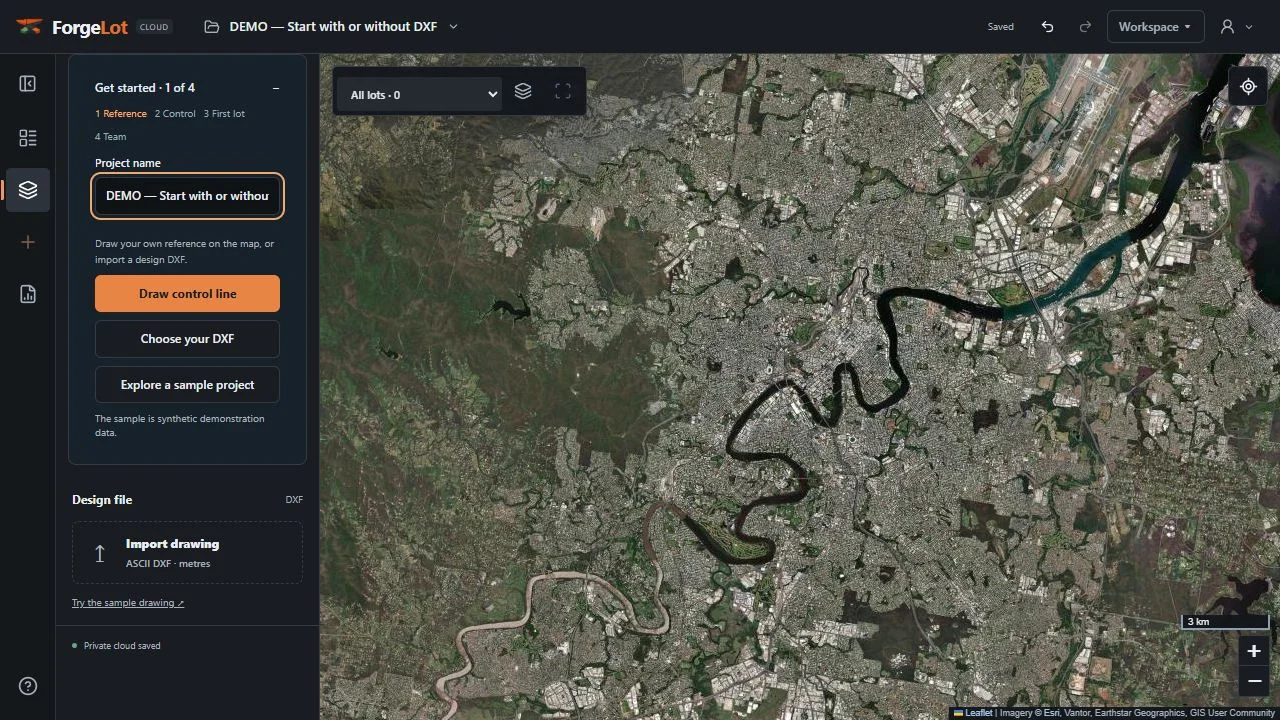
Create a project

Your project opens as a shared map and live lot register.

Start a project for the job you're delivering. Every alignment, chainage set and lot lives inside it, shared with your team.

  • One place for the whole delivery team to work from
  • Projects stay separate, no mixing up chainage between jobs
  • Invite site engineers, surveyors and QA staff as needed
2
ForgeLot Import menu showing DXF alignment and drone imagery options

Import your DXF & pick the alignment

Import the design alignment or add the latest drone flight.

Use Import in the top bar to add the design DXF. You can also add georeferenced drone or aerial imagery from the same menu.

  • No manual redrawing of the design geometry
  • DXF alignment and drone imagery have clear upload paths
  • Select the correct alignment when a file has multiple polylines
3
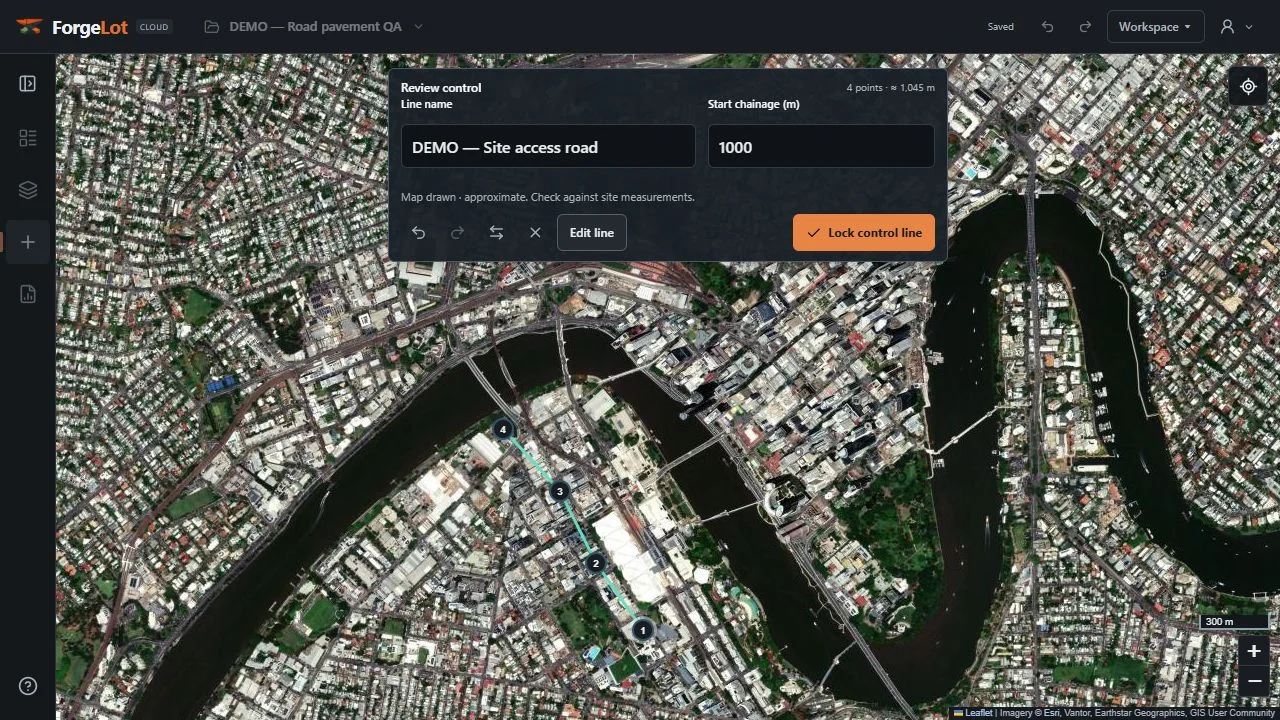
ForgeLot alignment panel with locked control line and editable chainage intervals

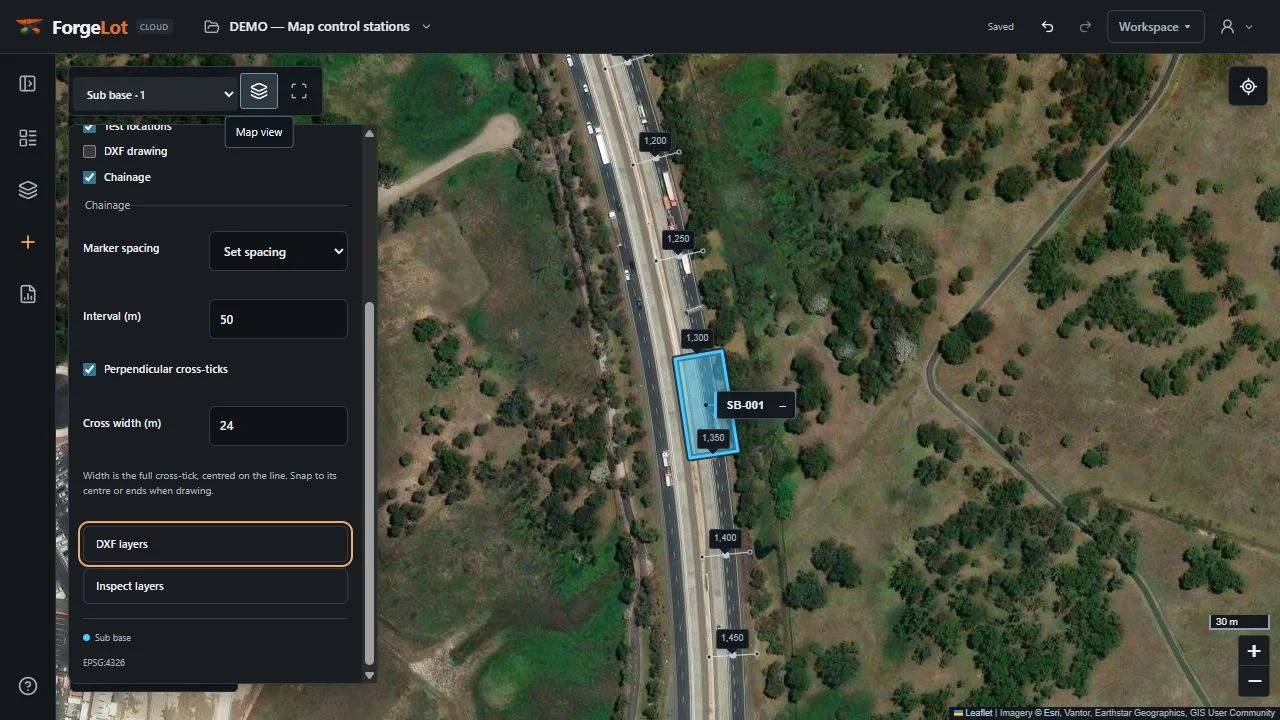
Lock the control line & set chainage

Lock the line and tune how often ticks and labels appear.

Confirm the coordinate system, lock the selected centreline, then choose the start chainage, tick interval and label spacing.

  • Positions on the map match the survey grid
  • Chainage markers are generated automatically
  • Tick and label intervals remain adjustable for project scale and performance
4
ForgeLot Create new lot panel with chainage, offsets, category and live polygon preview

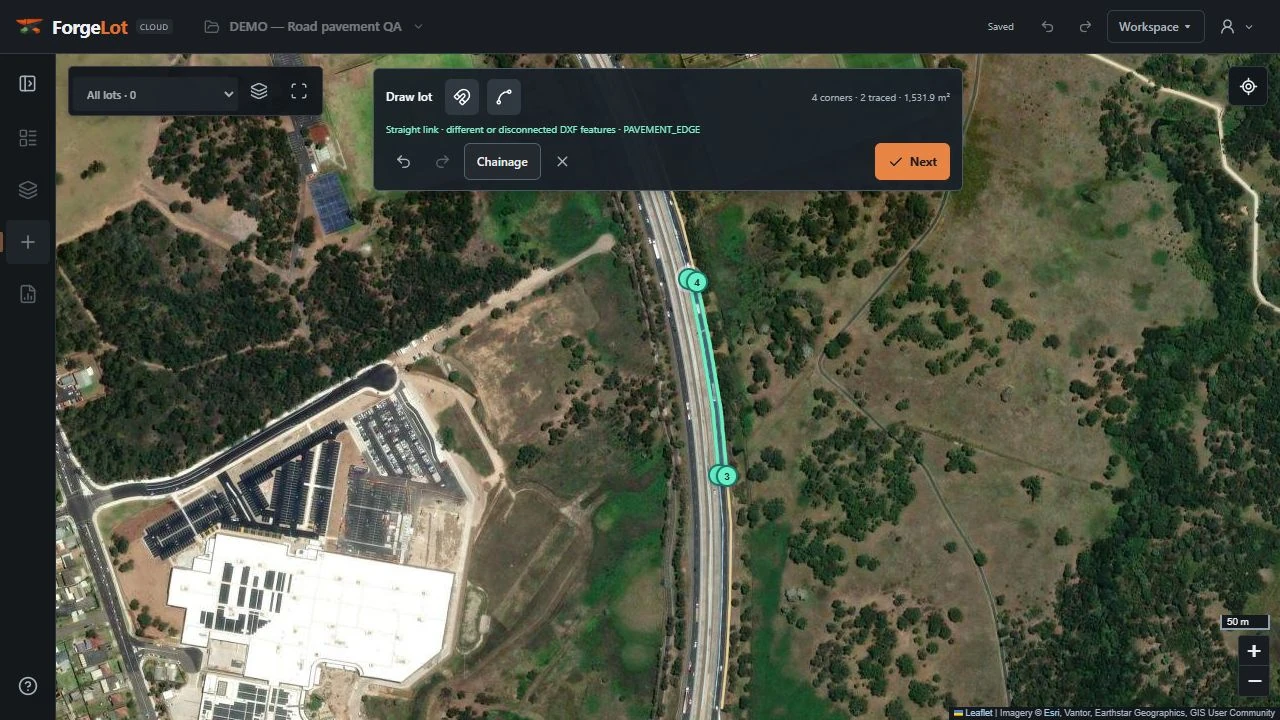
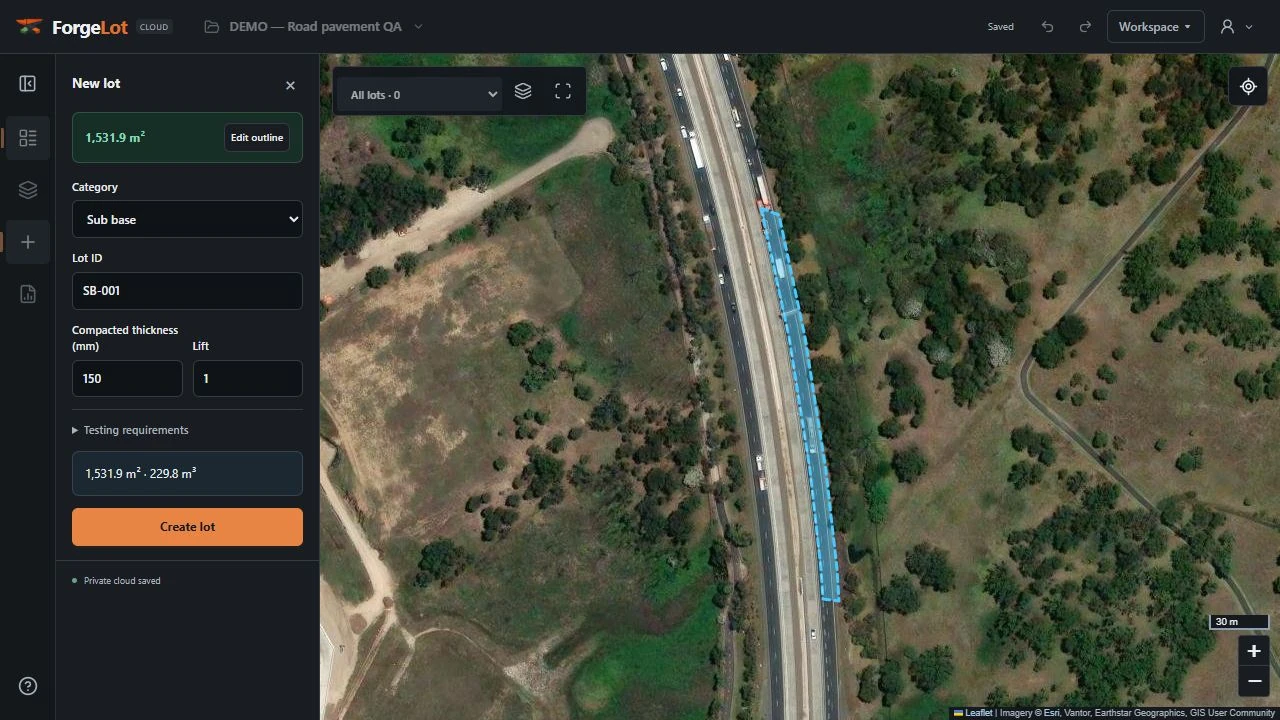
Forge lots by chainage and offset

Enter engineering dimensions and review the polygon before saving.

Enter the lot name, construction category, status, start and finish chainage and offsets. A live preview appears on the map before you create it.

  • Lots described the way engineers already talk about them
  • Polygon and area preview update in real time
  • Fast to create repeated lots along a corridor
5
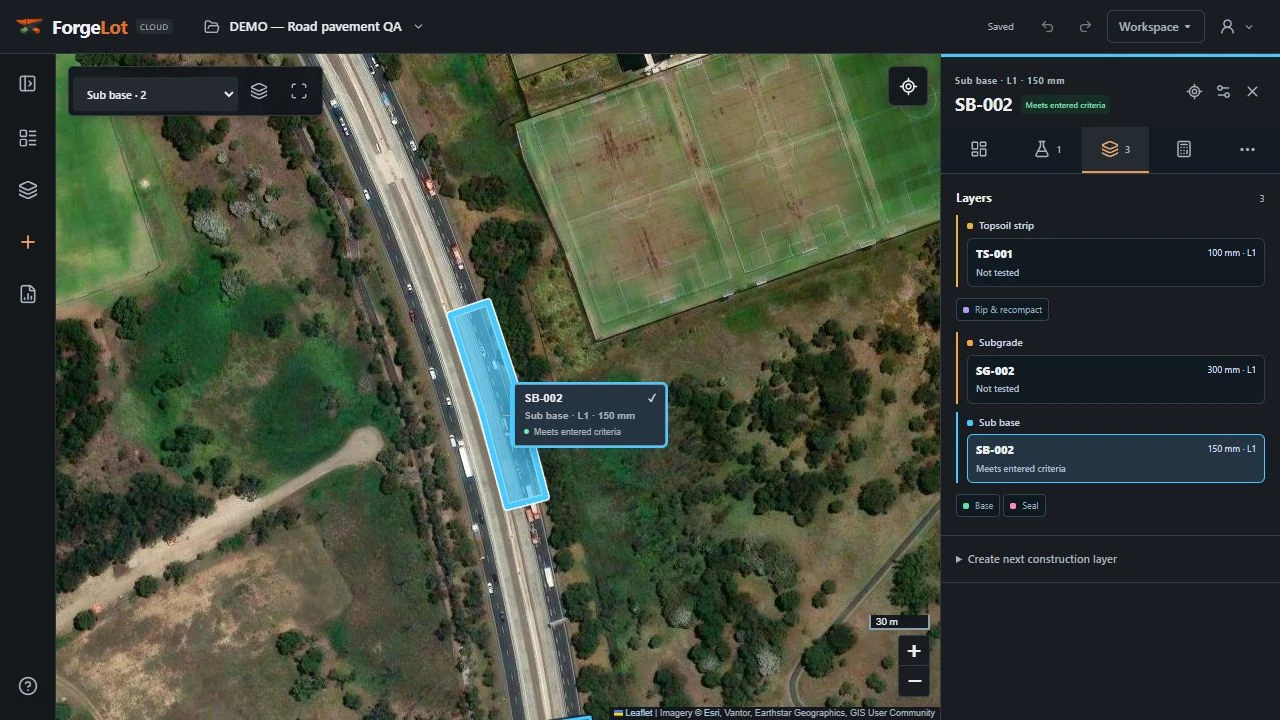
ForgeLot construction layers panel with coloured categories and status filters

Work with construction categories

Layer colours and filters keep complex work fronts readable.

Use ForgeLot's standard civil layer set to identify the construction sequence, control visibility and filter status. Custom, project-specific layer sets are on the roadmap.

  • Every category has a distinct map colour
  • Show or hide layers and statuses independently
  • Clear visual separation from topsoil through to base
6
ForgeLot Assistant creating a lot and answering a topsoil quantity question

Ask the ForgeLot Assistant

Talk to ForgeLot like a site engineer and get answers in seconds.

Use the AI assistant to create lots with plain engineering language, or ask end-of-month questions like how many square metres of topsoil have been stripped or how many cubic metres of earth have been placed.

  • Create lots by describing chainage, offset, side and category
  • Get instant quantities for monthly progress claims
  • No spreadsheet formulas or manual register lookups
A typical week

What a week on site looks like with ForgeLot

Different roles touch the same project in different ways, all through the week.

Early week

The project engineer forges the next set of lots along the upcoming chainage range, ready for crews to work through.

Mid week

Site engineers update lot layer and status as topsoil strip, rip and recompact and layer placement move through the corridor.

End of week

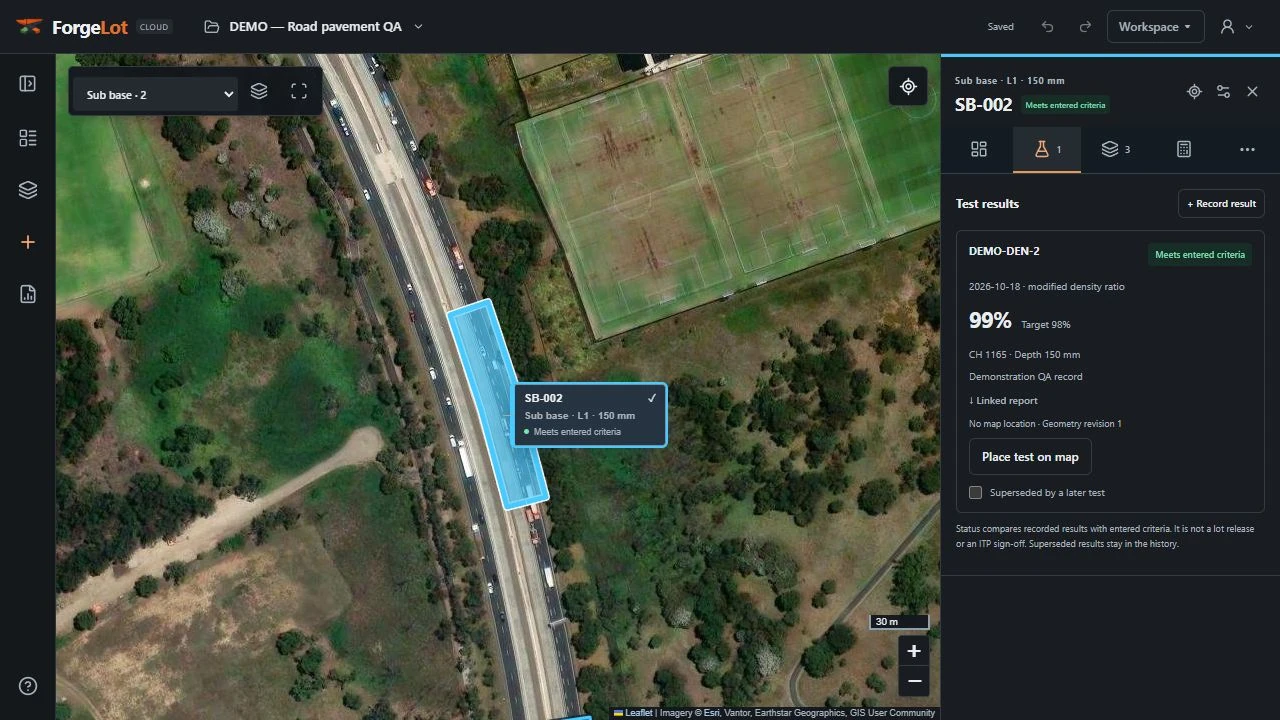
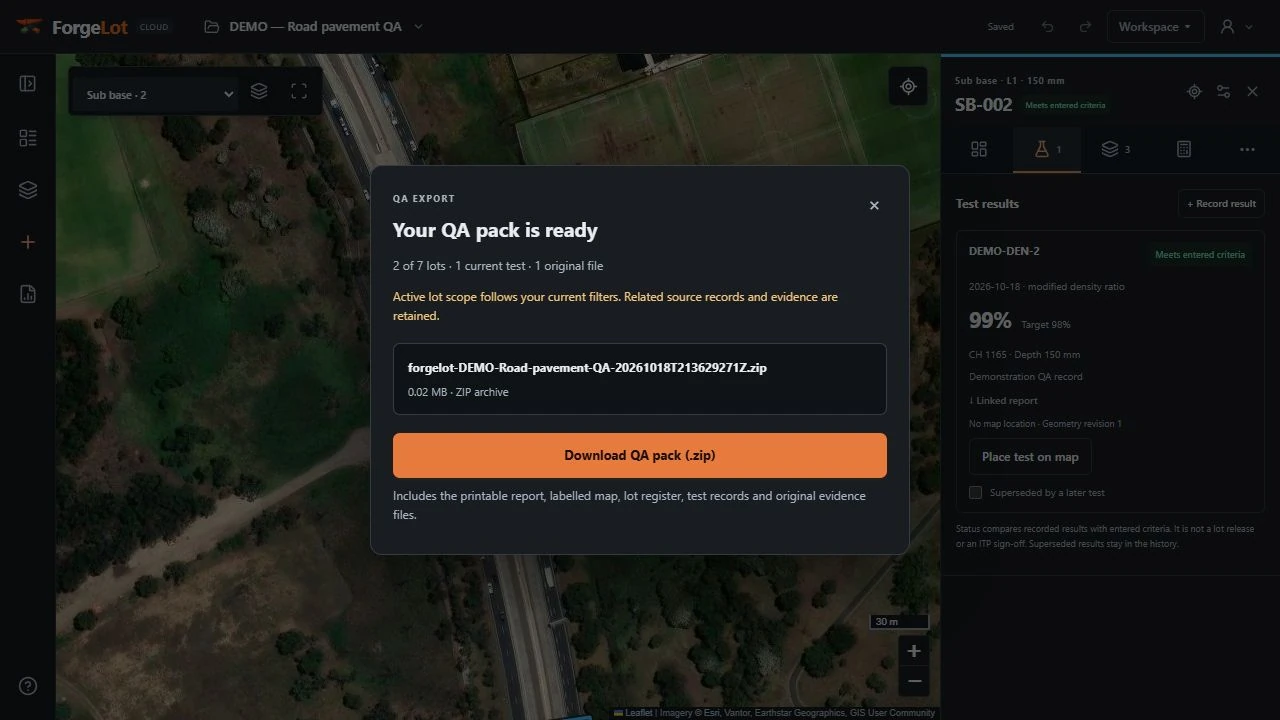
QA staff mark lots as passed, failed or awaiting testing, and a PDF register is exported for the weekly progress meeting.

Before you start

What you need to get started

ForgeLot is quick to stand up because it works from what your project already has.

  • A DXF with the alignment for your corridor
  • The project coordinate system, if you already know it
  • Your team's layer and status conventions

Stop guessing what's been built.

Import your alignment, forge your lots and share a live picture of progress with the whole team.

14-day free trial · Cancel anytime · Your data stays yours